 Device Maintenance Overview
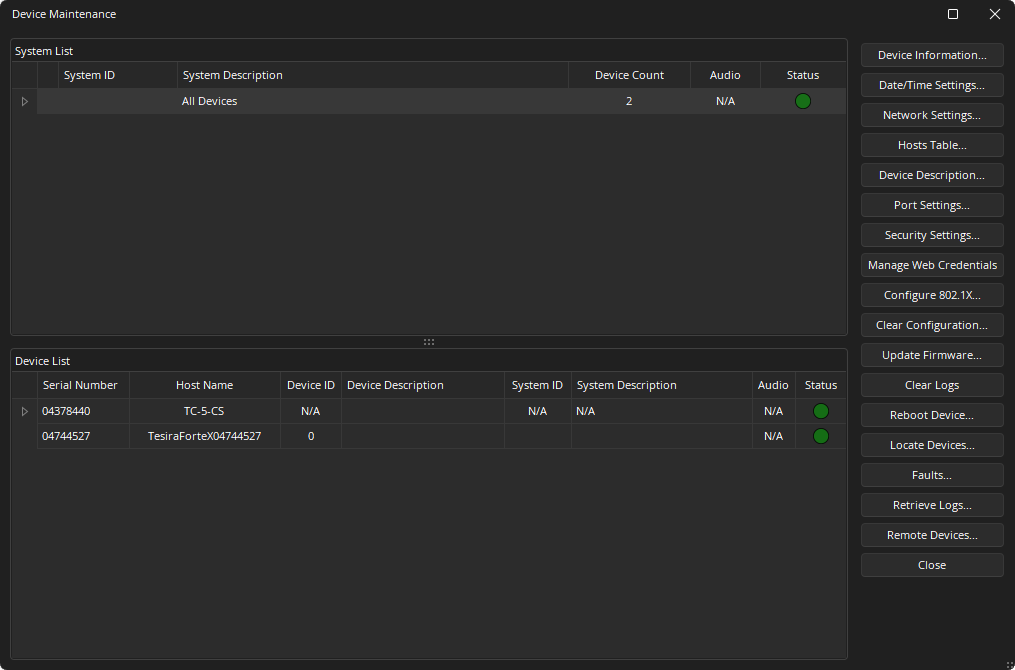
Access to the Device Maintenance Dialog is available from the Quick Access Toolbar, the File Menu, and the Network Section of the System Tab ribbon menu.
Lists
System List
Provides information on the discovered configured systems. Includes System ID, System Description, Device Count, Audio, and Status information.
Device List
Provides information on the discovered devices. Selecting a system from within the System List will limit the Device List to only show details of the devices contained in that system. Includes Serial Number, Host Name, Device ID, Device Description, System ID, System Description, Audio, and Status information.
Menus
Multiple devices can Clear their configuration, have their Host Tables configured or Firmware updated by holding the 'Shift' key to select multiple consecutive devices in the Device List. The Control key (CTRL) can be used to allow selection of multiple non-consecutive devices.
Device Information
Provides information such as firmware version, input / output configuration, etc. regarding the selected device.
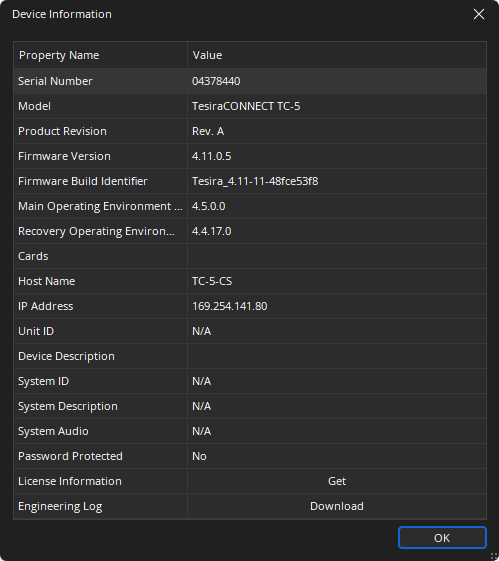
Note: Some Device Information Property Names and Values are device specific. For example, Sleep/Wake options are available for Voltera D but may not be available for other devices.
Date / Time Settings
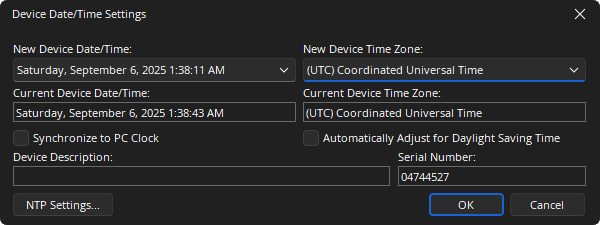
Used to configure time zone, daylight savings time adjustments and NTP (Network Time Protocol) servers. The date and time can be manually set or the unit can be synchronized to the clock of the host PC. Multiple devices clocks may be set at the same time. Consecutive devices may be set by selecting the first device then holding the Shift key then selecting the last device. Non-consecutive devices can be set by holding the Control (CTRL) key and individually choosing the desired devices. The default NTP server is time.biamp.com.
NTP Settings provides a list of three NTP servers to which the device can automatically synchronize. If the network provides a DHCP server, it can also be chosen as the NTP server.
Network Settings
Allows for manipulation of a device’s network configuration. The Host Name, DNS and IP configuration of the unit can be set as needed. See Device Maintenance Network Settings for more information.
Note: Some network settings such as the host name will not be available unless the device is in an unconfigured state. Clear Configuration action is required to make changes. Please see Clear Configuration below for more information.
Hosts Table
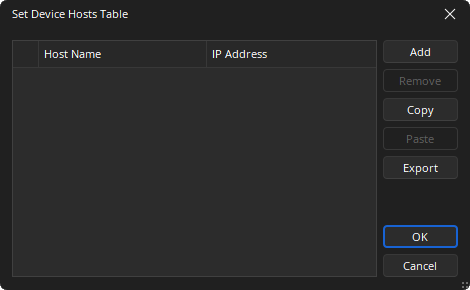
Allows for host name network mapping in the absence of a DNS server. The table simply maps an IP address to the host name of another unit.
Device Description
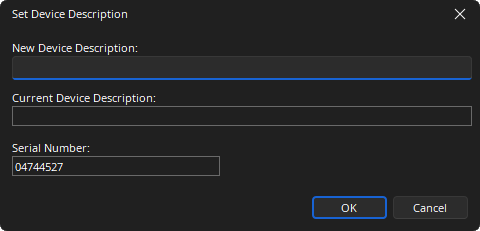
Used to view and set a logical description of the device.
Port Settings
Selects the baud rate for the RS-232 ports on the selected Tesira server-class device. Serial ports can be configured to use with Command string blocks, TTP inputs, both, none, or allow Control Tunneling. See the RS-232 section for more details. There is also an option to calibrate the Logic IO on Server class devices which allows for attached potentiometers to be configured.
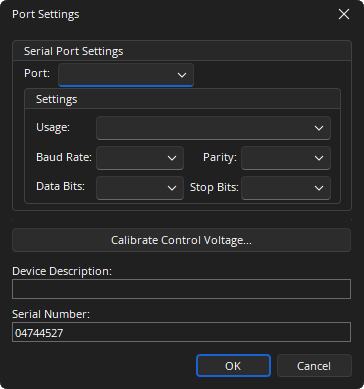
Calibrate Control Voltage is used to calibrate the GPIO connections on a Server SNC-1/SNC-2 card, TesiraFORTÉ, or TesiraLUX device.
Note: A Tesira software reboot is required after a serial port usage type or baud rate change has been made.
Security Settings
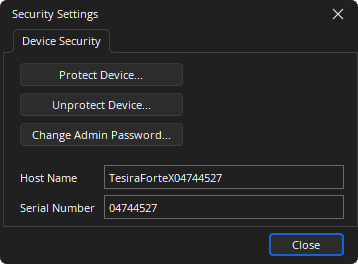
Allows security access and permissions to be implemented on a System. Please refer to the System Security page for information on protecting configured and unconfigured systems. See the Security section of the System Overview for more information.
Manage Web Credentials
Manage Web Credentials allows resetting the username and password required to access web-based functions in Tesira, such as the Event Scheduler. User is reset to admin. Password is reset to the device serial number.
Configure 802.1X
Allows the configuration of 802.1X data for devices to authenticate with an 802.1X-enabled network. The interfaces supported are Control, VoIP and AVB. This function is only enabled on server-class devices. 802.1X is an IEEE standard for passing Extensible Authentication Protocol (EAP) over a wired or wireless LAN. See Configure 802.1X for more information.
Clear Configuration
Clears all current system design data from the selected device(s) and resets the System ID to 0 (Zero). To associate a new configuration to the device, a Clear Configuration is required before uploading the new configuration. For running systems, this happens automatically whenever there is a change to the running system file. See the Send section of the System tab page.
The VoIP configuration webpage will be inaccessible in an unconfigured state and the username and password will be returned to the default states upon being reconfigured.
Update Firmware
Allows a Firmware update file to be sent to a discovered Server or Amplifier class device. Update Firmware opens a file browser window where the firmware file (.tfa or .tfa2) can be selected.
When a valid firmware file is chosen, a dialog window is produced that shows all discovered devices in a table with columns indicating System ID, Device IP Address, and other details for each unit. To specify a unit for updating, place a check in that unit’s Update box. Buttons are provided to Select All entries and Clear All entries. Press the OK button to perform the firmware update on the selected units.
Clear Event Logs
Removes logs from the selected device. The Event Logs may be used to assist in troubleshooting a system. A prompt confirming the logs will be cleared will be displayed.
Reboot Device
Powercycle the selected device. A count down timer will begin allowing sufficient time for the device to return to normal operation. Once the timer reaches 0 seconds, Device Maintenance will close and reopen a new device discovery.
Locate Devices
Can be used to bring attention to a device by flashing front panel and/or other visible LEDs, overriding normal front panel display behavior. Locate can also be initiated physically via the front panel on certain devices and can report back to this dialog in the software for identification.
The locate feature can be turned on or off for a device by clicking the Locate button within the Locate Devices dialog. See Device Maintenance Locate Devices for more information.
If multiple rows are selected and locate is clicked, the last-selected row’s value for locate is toggled and the other rows become unselected. For multi-selection Locate, a right-click context menu is available and has two options, “Turn on locate on selected rows” and “Turn off locate on selected rows”. These two options perform their given task on all selected rows.
The “All Locate Off” button will set locate to off for all devices (including devices that are filtered out) on the list.
Additional details are available on the Locate Devices page via the System Tab.
Faults
Faults displays a list of current faults on the selected device. Please see the System Status and Faults sections of the Status Bar page for more details. Devices may display sub-faults due to faults present in other devices within the same system. If the Faults option is unavailable this indicates the device does not have any current faults (also represented by a green Status indicator).
Retrieve Event Logs
Log files are stored by the Tesira software on a one file per device basis. The Retrieve Event Logs function allows the extraction of log files from a single server device. Functions include viewing logs as well as retrieving logs for saving on a local PC for offline review as a text file (.txt). If logs are required from all devices in a system they must be retrieved individually. Using the Event Logs function in the Network section of the System Tab allows a system wide retrieval of logs.
Remote Devices
The Remote Devices function is used to display and manage remote device settings. These include such devices as audio expanders, controllers (HD-1, TEC-1, TEC-X 1000 and TEC-X 2000) and EX-LOGIC devices. See Device Maintenance Remote Device Settings for more information.