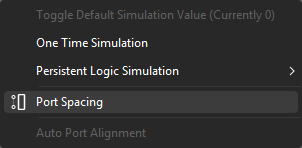
Menu Navigation
Overview of the types of menus available and a guide of how to use them.
Quick Access Toolbar
By default, the quick access toolbar has a modular list of common use features including Save, Undo, Redo, and Device Maintenance. The quick access drop-down menu is used to modify which options are available along this toolbar and to select if the toolbar is situated above or below the ribbon menu.
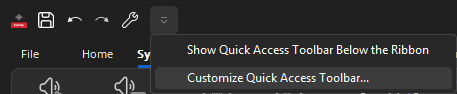
Additional options may be added to the quick access toolbar by right-clicking on a ribbon menu option (such as Compile, Connect, or Zoom) to open the Menu Context menu and select the Add to Quick Access Toolbar option. Alternatively, click on the quick access drop-down menu and select Customize Quick Access Toolbar option to open the Quick Access Toolbar Customization dialog.
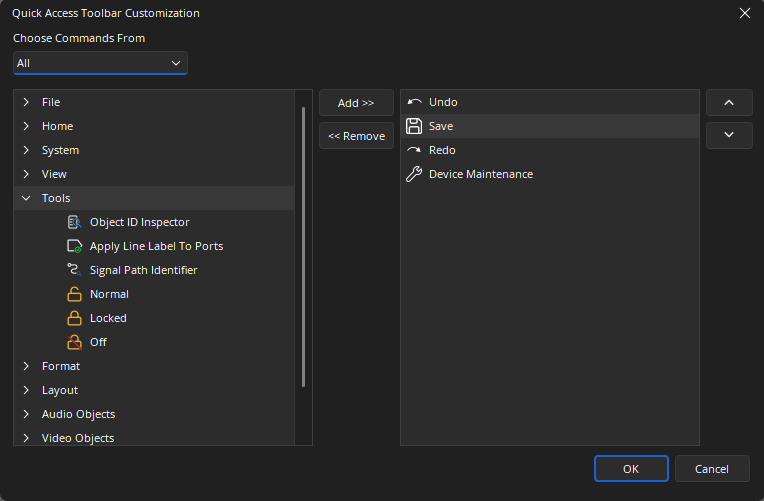
Icons for specific feature selections may be added to, or removed from, the column on the right using the Add and Remove buttons on this menu. Use the Up and Down arrow buttons to change the order of the icons in the right column. Hit OK to confirm the selection and order of each Icon in the right column. These will be available in the Quick Access Toolbar along the top left edge of the window (or below the ribbon if that option has been selected).
File Menu
The file option sits on the same line as the other tabs but operates as a high level software menu and doesn't have a ribbon of features. When file is selected the high level menu will open above the whole software window until an option is selected. See File Overview for additional details.
Ribbon Menu
The main functions of Tesira software are accessible via a Ribbon interface at the top of the window. This interface is structured by tabs along the top of the ribbon, each revealing a new ribbon menu containing different sets of Tesira functions while selected.

Within each ribbon, these functions are consolidated into sections based on related performance, such as the Compilation section of the System Tab Ribbon. The default ribbon (simplified) menu display may be collapsed down into a more compact (classic) version by using the arrow button in the lower right of the ribbon menu.
Docking Menus
Dockable menus, such as Properties or System View, are interface elements that can be attached to the main window edges (docked) or exist as independent (floating) windows. When docked, menu panels can be closed, undocked by being dragged away, or pinned for "Auto-Hide." A pinned panel collapses into a named tab on the window's periphery, expanding on hover and retracting when the cursor moves away.
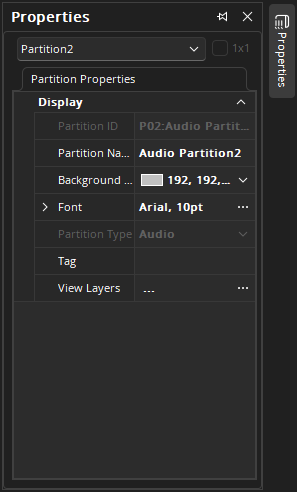
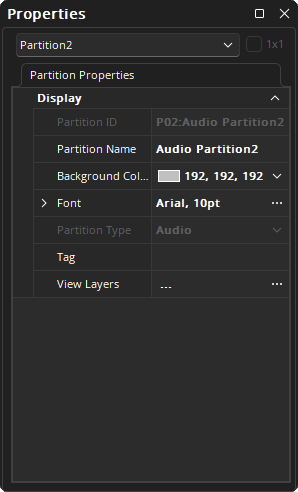
As a floating window, a menu panel can be freely moved, maximized, or closed. To dock it, click and drag the panel to reveal visual docking guide arrows. Primary guides appear at the main window's edges for edge-docking. When hovering over an existing docked menu, a secondary guide cluster appears, allowing you to dock adjacent to it or, by dropping it on the centered folder icon, group the panels as tabs.
Dialog Menus
Dialog menus, such as Device Maintenance or an Initialization Dialog for an Audio Object, are pop up elements that are prompted by events in the software, most often selecting it from a menu. Dialog menus are modal, meaning they operate on a Last-In, First-Out (LIFO) principle. An open dialog renders all underlying windows non-interactive, and only the topmost dialog in a stack can be interacted with. For example, if the NTP Settings dialog menu is opened from the Date/Time dialog menu, it becomes the topmost window. It must be closed before the underlying Date/Time dialog or any other part of the software can be accessed.
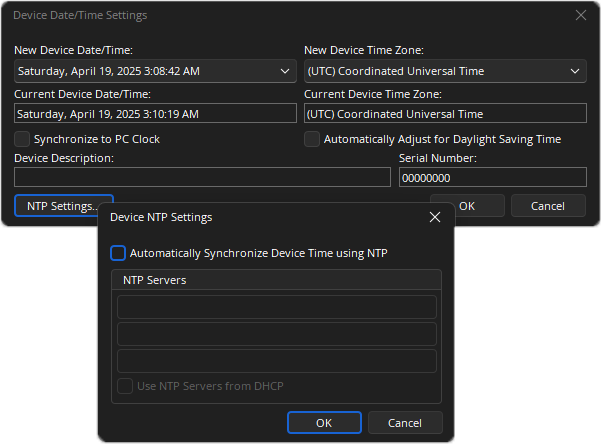
Note: Some Dialog menus, such as the Control Dialog menus for Audio/Video Objects, don't make use of the LIFO principle and won't need to be closed before accessing other parts of the software.
Control Surfaces
Some Control Dialog Boxes for controls can be minimized to create customized control surfaces. When minimized, the LIFO principle is disregarded and normal interaction with screen elements and menus is returned. The control surfaces can also remain visible even if the components they represent are made invisible (via Layers). Therefore a custom User control surface can be created in the Layout with User access allowed but with all other system settings inaccessible (and hidden). See Software User Interface section of the Screen Elements, Lines, and Labeling page for additional details on Control Surfaces.
Note: These control surfaces can then be made accessible to the User with a specific Password. These control surfaces remain functional even if other component settings are made inaccessible to the User (via Password Level).
Context Menus
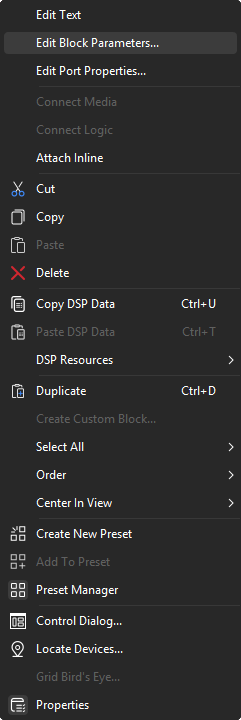
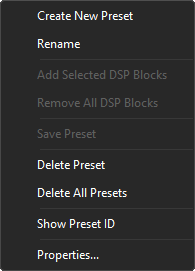
Context menus are accessible by 'right clicking' on menus, partition workspaces, or objects on a partition workspace. The options available differ depending what is selected.
Surface Context
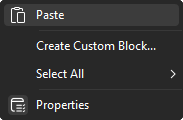
When selecting an empty area of a partition workspace the options relevant to that surface are made available.
Connection Context
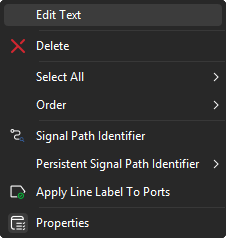
When selecting a connection between objects the options relevant to the that kind of connection are made available.
Object Context
When selecting an object the options relevant to the that kind of object are made available.
Menu Context
When selecting a menu, such as a ribbon or docking menu, the options relevant to the that menu are made available.
Port Context
When selecting a port the options relevant to the that kind of port and object are made available.