Overview
The Audio Object Tab ribbon menu allows for audio component object selection and placement. The ribbon menu and available component objects will be determined by whether a Video or Audio partition is active.
Note: Video Objects are related to Video functions and will not be available when working in an Audio partition. See the Video Objects pages for information about specifics about Video Component Objects. Create a new partition using the Home Tab ribbon menu or see the Partition section of System Considerations for determining the selected tab.
Standard
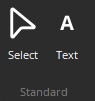
In addition to audio DSP blocks, the Audio Object Bar provides the selection pointer (cursor) and text graphic elements. The selection pointer is the default selection for the application. Text Graphic Element can be placed in the layout just as the audio DSP blocks. The text can be edited by a right-click on the graphic element and then choosing Edit Text from the drop-down menu.
Blocks
Each category is represented by an icon, with a drop-down. To place a Component Object, first choose the appropriate category and then select the desired component from the drop-down menu. Once the component has been selected, left-click at the desired location on the Layout. When placing components into the Layout, certain components will present the user with a pop-up window, called an Initialization Dialog, of configuration options.
