 Layers
Provides an editable table of Layer properties. Layers can be used to separate a Layout into multiple parts. The Layers can be organized with regards to object types, system segments, or any other criteria. The Default Layer always remains, but other Layers may be created or removed.
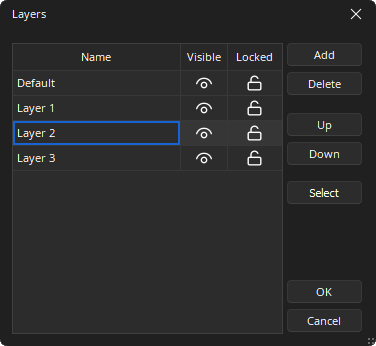
Name: Can be used to give a custom name to the layer.
Visible: Turns on/off visibility of a Layer.
Locked: Prevents a Layer from being changed or selected.
Add: Creates a new Layer.
Delete: Removes the selected layer.
Up: Moves the position of a Layer up the list (Layers are not stacked, so this does not affect Tab Order or visual overlapping).
Down: Moves the position of a Layer down the list (Layers are not stacked, so this does not affect Tab Order or visual overlapping).
Select: Will select all objects on the selected layer (Objects cannot be selected when the current Layer is invisible).
Use Ok to apply changes and close the dialog and Cancel to close the dialog without applying the changes.
Note: Components cannot be selected when the current Layer is invisible. Lock prevents a Layer from being changed or selected. Lock & View may also be accessed by double-clicking on the corresponding icons within the list.