Overview
The View Tab ribbon menu has options for customizing of the visual layout out and buttons to select which docking windows are accessible. Active buttons will be highlighted and have a blue border.
Show
Provides toggles to display/hide docking menu items, partition ruler, and partition grid. Show also has an option for opening component Control Dialog menus.

Docking Menus: Select docking menus for Properties, System View, Bird's Eye View, Output Window, Processing Library, Preset Manager, and DSP Resources. See the Docking Menus section of the Menu Navigation page for additional details.
View Ruler: Turns the layout ruler view on or off.
View Grid: Turns the layout grid view on or off.
Control Dialog: Reveals the control dialog options of a selected Audio or Video DSP object. (Control Dialog selection is only available while an object is selected on the partition and only for component objects that have a control dialog menu.)
Zoom
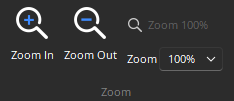
Provides options to Magnify, Reduce, or Zoom 100% (Restores the view to the default) the active layout view. This section also has a Zoom percentage field where the numeric value may be selected from the drop-down or typed.
Windows
Provides options for configuring how the partition layouts are displayed in the application window and which is active. This is managed via the Use Partition Tabs toggle and the Windows drop-down menu. See the Compilation and Partitions page under System Considerations for additional information.
Use Partition Tabs
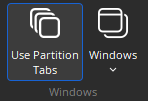
Toggles the use of partition tab layout option. While toggled on, partitions are tabbed in the window and clicking on a tab or selecting that tab from the Window menu brings it to the front. 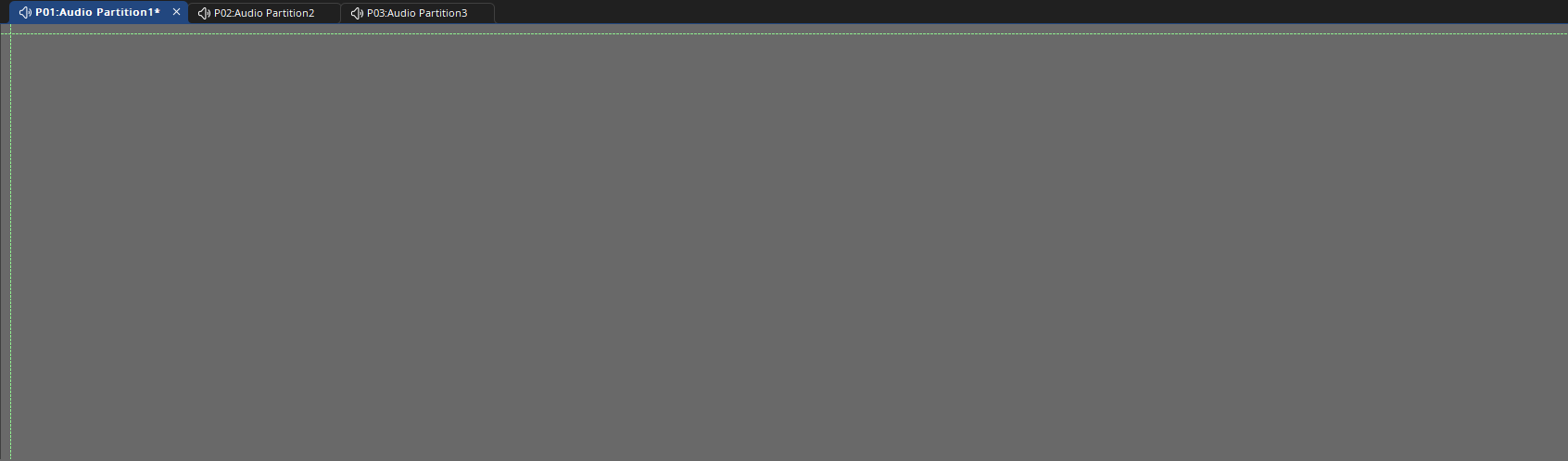
Windows
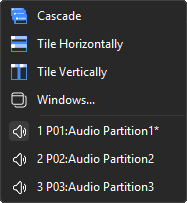
The drop-down menu displays a list of available partitions and can be used to switch select one to be the active (front) partition regardless of the status of the Use Partition Tabs toggle. While Use Partition Tabs is toggled off, the drop-down menu displays layout options for partition windows to Cascade, Tile Vertically, or Tile Horizontally. It also provides access to the Manage Open Windows menu via the Windows... button.
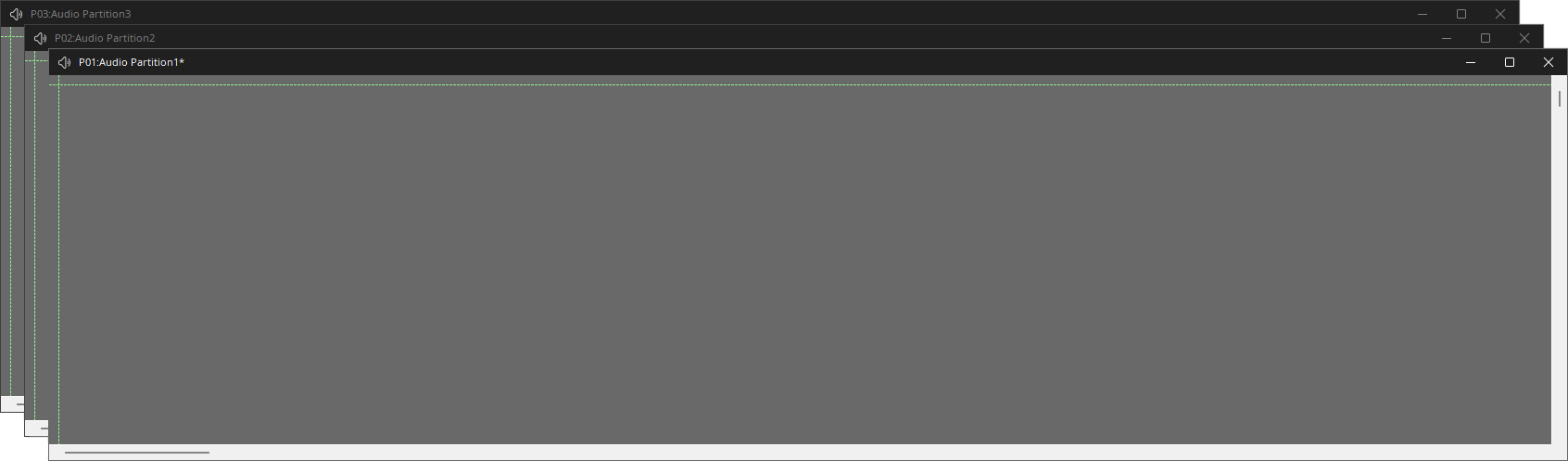
Manage Open Windows
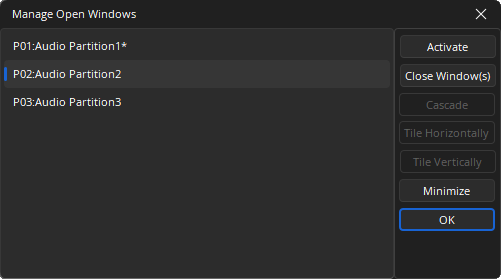
A window menu that includes the same options available from the Windows drop-down with more granular control to manage partition windows. For example, windows can be closed or minimized from this menu and partition layout options can be applied to a selection of partition windows instead of all windows.
Display
Provides a toggle for the software display mode, dark or light. Dark Mode is toggled on by default.