 Processing Library
The Processing Library allows for organization of DSP objects into catalogs for easy addition to a layout. Within the Processing Library View Sheet, one has the option to Create, Delete, Import and Export catalogs as well as add/remove object within a selected catalog, and copy/paste object to/from the clipboard. The upper field of the sheet displays the list of available catalogs. The lower field displays the Items within a catalog selected in the upper field. Items may be dragged from the lower field into the partition workspace.
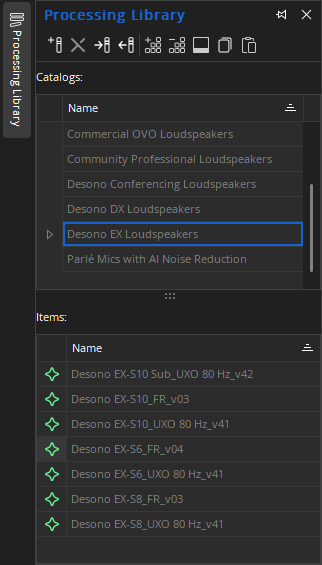
New Catalog: This adds a catalog in the Catalogs field named ‘New Catalog’. By clicking on the new heading, the user can give the New Catalog a name.
Delete Catalog: To delete a catalog, select one in the Catalogs field and hit Delete Catalog.
Import/Export Catalog: Tesira allows processing catalogs to be imported and exported as files with the .tlf extension. To import a catalog, click the Import icon. Browse for the Catalog file (.tlf file) to import and select it. The Catalog will then appear in the list. To export, select a catalog and click on the Export button. Name the file and save it to storage.
Item from Selection: Items can be added to a selected catalog by selecting an object in the main program window and clicking on the Item from Selection Icon. If multiple objects are selected, they will be added to the catalog as a block, meaning they can only be added to a layout in that combination. Selected items can also be dragged into a catalog by holding down the CTRL key while dragging them into the Items field.
Delete Item: A selected item can be deleted from a catalog by clicking on the Delete Item Icon. This can also be done by right-clicking on the item in the list and choosing the Delete option from the pop-up menu.
Change Image: To change the image associated with a specific catalog item, select the item (mouse click) and click the Change Image Icon. The standard object images (matching object toolbar images) will appear along with an Import Image selection. Note that imported images are limited to 16x16 pixels. All larger images will be clipped to 16x16 starting from top left. Supported file format for imported images is .svg.
Item to Clipboard: To place multiples of a catalog item into a layout, select the item and click on the Item to Clipboard Icon. The item can now be placed in the layout by using Paste from the edit menu (CTRL+V).
Paste from Clipboard: To place and item from the clipboard into a catalog, select the item in the layout and copy it (CTRL+C), Copy from the Edit menu or copy from right-click on selected object. Paste the object into the selected catalog by clicking on the Paste from Clipboard Icon.
Note: The Processing Library is docking menu. See the Docking Menus section of the Menu Navigation page for additional details.
Parameter Selection
Some processing library items will display a parameter selection dialog (e.g., number of mics, speakers, etc.) prior to populating the partition. Making these selections automatically generates the correct number of blocks and channels for the item.
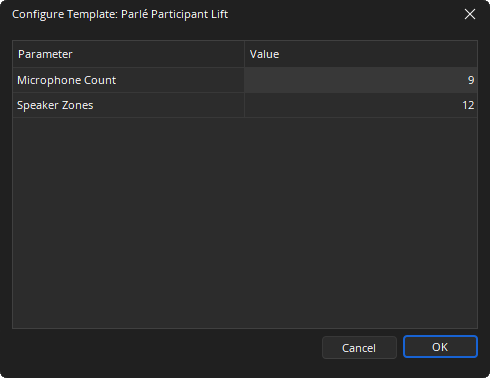
Note: Parameterized Processing Library items are exclusive to select Biamp-authored catalogs. Biamp-authored catalogs are displayed using grey text, while user-authored catalogs are displayed using white text.
Custom Blocks
The processing library comes pre-installed with numerous custom blocks. These custom blocks are in read-only and are not modifiable by the user, but may be copied and exported if changes are desired. See Custom Block for additional information.