Overview
The Layout Tab ribbon menu has options that can alter aspects of Layout such as a grid, rulers, zoom functions, and alignment of Component Objects. Objects must be Selected to use most of the Layout functions.
Note: Functions that adjust the location of component objects will use the selected target object as the primary reference for the adjustment being utilized.
Packing
Provides a menu for packing selected objects next to each other. The Packing function can be used when multiple objects are selected.
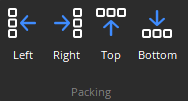
Left: Packs selected objects aligned on the left.
Right: Packs selected objects aligned on the right. The target location for packing Left/Right is the top-most selected object.
Top: Packs selected objects aligned on the top.
Bottom: Packs selected objects aligned on the bottom. The target location for packing Top/Bottom is the left-most selected object.
Alignment
Provides a menu for aligning the edges of selected objects. The primary selected object (green handles) provides the target edges for alignment. The Align function can be used when multiple objects are selected.
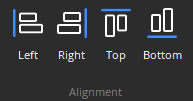
Left: Aligns selected objects on the left.
Right: Aligns selected objects on the right.
Top: Aligns selected objects on the top.
Bottom: Aligns selected objects on the bottom.
Spacing
Provides a menu for evenly spacing selected objects. Spacing is determined between the two most distantly spaced selected objects. The Spacing function can be used when multiple objects are selected.
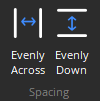
Evenly Across: Spaces selected objects horizontally.
Evenly Down: Spaces selected objects vertically.
Centering
Provides a menu for centering the Layout view on the selected objects.
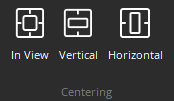
In View: Centers selected objects within the visible Surface, both vertically and horizontally.
Vertical: Centers selected objects vertically within the visible Surface.
Horizontal: Centers selected objects horizontally within the visible Surface.
Sizing
Provides a menu for matching the dimensions of selected objects. The primary selected object (green handles) provides the target dimensions. Objects cannot be smaller than original size. The Sizing function can be used when multiple objects are selected.
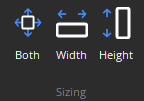
Both: Sizes selected objects both in width and height.
Width: Sizes selected objects in width only.
Height: Sizes selected objects in height only.
Order
Provides a options for changing the order in which overlapping objects appear on the Layout. The selected object(s) will either move in front of overlying objects, or will move behind underlying objects.
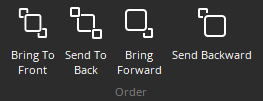
Bring To Front: Moves selected objects in front of all other objects. (This also is available via the CTRL+F keyboard shortcut)
Send To Back: Moves selected objects behind all other objects. (This also is available via the CTRL+B keyboard shortcut)
Bring Forward: Moves selected objects forward relative to others.
Send Backward: Moves selected objects backward relative to others.
Advanced
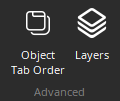
Provides access to Object Tab Order menu and Layers menu.