Overview
The Home Tab ribbon menu is a collection of options for common tasks. Some of the options available are redundant controls with other tabs, this will be noted in the description where applicable.
Clipboard
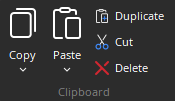
Copy:
- Copy: Places a copy of the selected object(s) into the Clipboard.
- Copy DSP Data: Places a copy of the DSP data from the selected Component object into the Clipboard. DSP Data represents the current settings of that Component Object. DSP Data can be copied from only one Component Object at a time.
Paste:
- Paste: Places a copy of the object(s) from the Clipboard into the Layout.
- Paste DSP Data: Places a copy of the DSP data from the Clipboard into the selected Component object. DSP Data represents the current settings of that Component Object. DSP Data can be pasted simultaneously into multiple Component Objects.
Duplicate: Places a copy of the selected Component or Text Object directly into the Layout. Duplicate also places a copy of the object into the Clipboard.
Cut: Removes the selected object(s) from the Layout, and places them in the Clipboard.
Delete: Removes the selected object(s) from the Layout, without placing a copy into the Clipboard.
Note: The software supports Copy/Paste DSP Data between objects which are of the same type, but which have different sized configurations. Examples: 4x4 & 8x8 Matrix Mixers; 3-band & 5-band Parametric EQ. Any data related to configuration is not copied in copy/paste DSP data. This operation can run when connected to a system so data referring to the network/protocol settings, stream names, microphone model types, etc are not included in copy/paste DSP Data.
Edit
Provides basic selection and action functions.
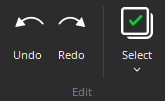
Undo: Will undo last operation.
Redo: Will redo most recent Undo operation.
Select: Drop-down menu with various selection options. See the Object Selection section of Workspaces for additional details about utilizing selection.
- Select All DSP Objects
- Select All Block
- Select All Blocks of Selected Type
- Select All Lines
- Select All Objects
Partition
Provides options for creation and management of audio and video partitions.
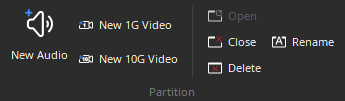
New Audio: Creates a new audio partition, which creates a new tab in the working system layout.
New 1G Video: Creates a new 1Gbps video partition, which creates a new tab in the working system layout.
New 10G Video: Creates a new 10Gbps video partition, which creates a new tab in the working system layout.
Open: Opens a list to select an existing, currently closed, DSP partition to open.
Close: Closes an open, and active, DSP partition.
Rename: Opens a text field to rename the active DSP partition.
Delete: Deletes an existing, and active, DSP partition.
System
Provides options for starting or stopping system media and different compilation tasks to be selected and performed. Each of these functions are described in greater detail in the System Tab Overview section.

Packing
Provides a menu for packing selected objects next to each other. The Packing function can be used when multiple objects are selected. These are also available from the Layout Tab.

Left: Packs selected objects aligned on the left.
Right: Packs selected objects aligned on the right. The target location for packing Left/Right is the top-most selected object.
Top: Packs selected objects aligned on the top.
Bottom: Packs selected objects aligned on the bottom. The target location for packing Top/Bottom is the left-most selected object.
Alignment
Provides a menu for aligning the edges of selected objects. The primary selected object (green handles) provides the target edges for alignment. The Align function can be used when multiple objects are selected. These are also available from the Layout Tab.

Left: Aligns selected objects on the left.
Right: Aligns selected objects on the right.
Top: Aligns selected objects on the top.
Bottom: Aligns selected objects on the bottom.