 Paging - Paging Station
The Paging Station block represents the physical NPX device. See the Biamp NPX Paging Station Installation & Operation Guide on Biamp Downloads and the Configuring a Tesira NPX paging system article on Cornerstone for additional information.
Note: Paging Control must be placed in the layout before a Paging Station can be placed. Attemping to place a Paging Station without it will result in an error message and the block will not be placed. See Paging Station and Zone Control for additional details.
Initialization Dialog
When Paging Station is selected the Paging Station Initialization Dialog window is displayed.
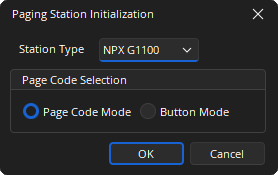
Station Type: Drop-down to select one NPX model (default is NPX G1100).
Page Code Selection: Page Code Selection allows for either Page Code Mode or Button mode selection.
DSP Block Representation

Control Dialog
The Paging Station Block manages the paging codes and audio for a specific NPX device. Multiple Paging Station blocks are permitted in a layout allowing up to 16 stations to be supported.
Page Codes Tab
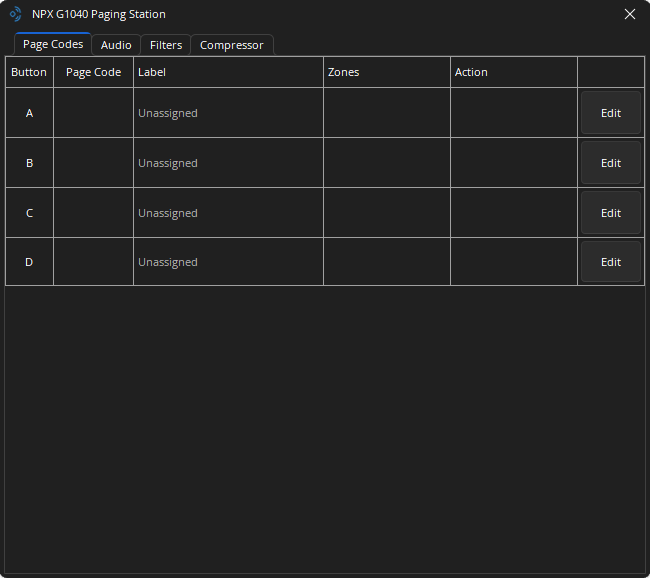
4-Key Paging Station Page Codes Tab:
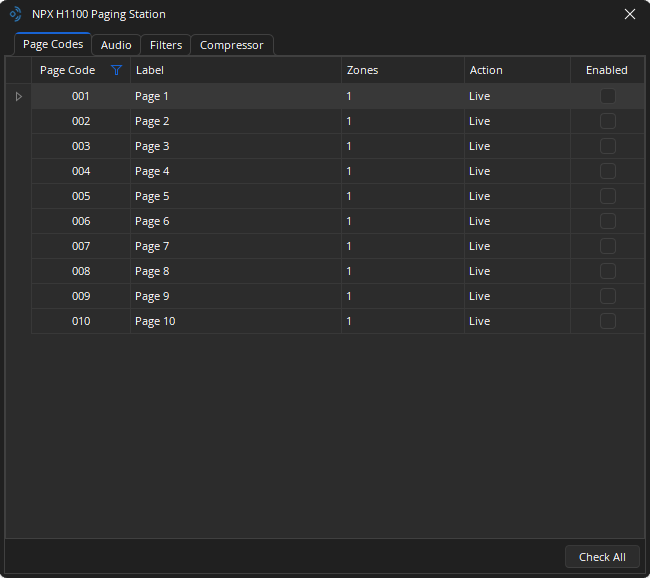
10-Key Paging Station in Page Code Mode:
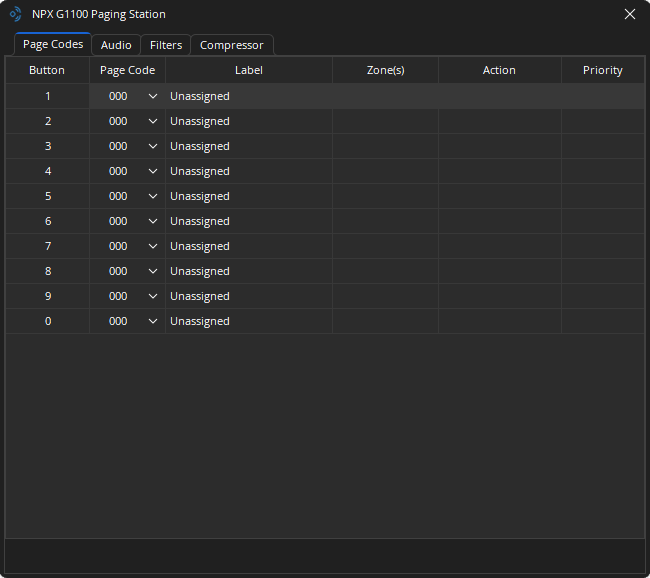
10-Key Paging Station in Button Mode:
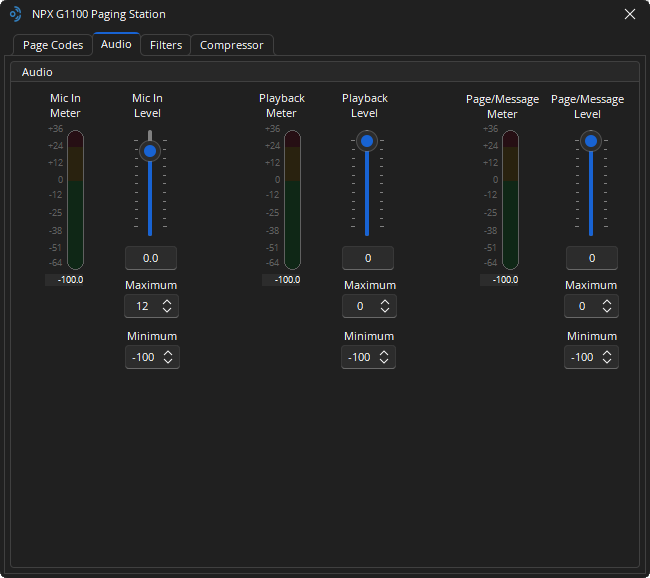
Audio Tab
Filters Tab
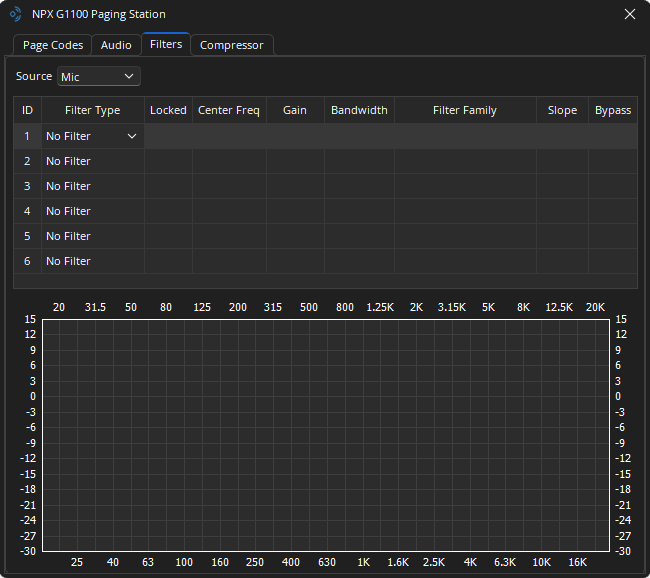
Source: Allows the user to select between editing the microphone or playback filters.
ID: This is the filter number.
Filter Type: Used to change the type of filter in that position, which can be done even when the configuration is loaded and running live, unless the locked box has been checked.
Locked: If a filter stage is locked, the DSP resources for that filter type are allocated and the filter type cannot be changed once the configuration is loaded.
Center Frequency: Central frequency between the upper and lower cutoff frequencies.
Gain: Gain is the level of the input signal.
Bandwidth: The frequency range that an audio system can deliver.
Filter Family: Allows the user to select from available high or low filter types.
Slope: The measure of the amount of feedback from the filter's output to its input.
Bypass: An audio bypass filter attenuates the entire range of frequencies.
Note: The Gain range for High and Low Shelf Filters on the NPX Filters Tab differ from the range for High and Low Shelf Filters elsewhere. The Gain range is -27.0 - 9.0 on NPX Filter Tab High and Low Shelf Filters.
Compressor Tab
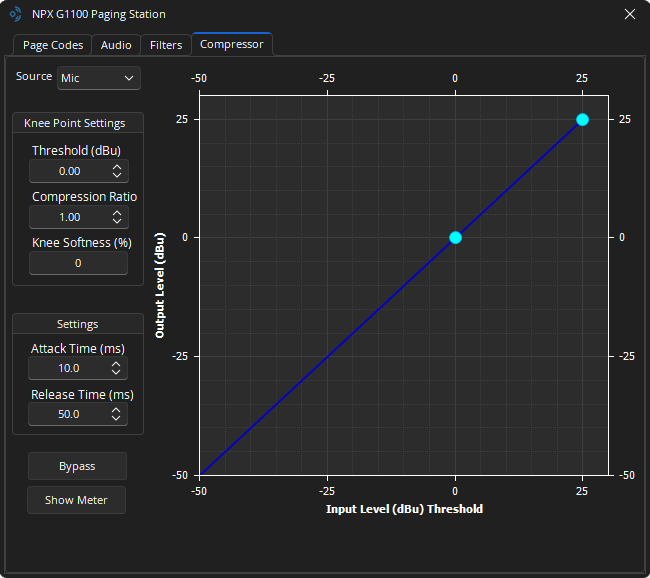
Source: Allows the user to select between editing the microphone or playback compressors.
Knee Point Settings
Threshold (dBu): Indicates the input level at which the Knee takes effect. This represents the location of the Knee Point on the horizontal (“Input Level Threshold”) axis of the graph.
Compression Ratio: Determines the extent to which the signal level will be reduced when the input signal level is above the Threshold point.
Knee Softness: Defines the smoothness of the transition from one compression ratio to another. A radius of zero (also known as a “hard knee”) creates an abrupt transition. Larger values (also known as a “soft knee”) create a smoother transition, and in some cases can reduce the audible transition from an un-compressed to compressed signal, particularly when the compression ratio is high.
Settings
Attack Time (ms): Sets the time it takes for the output level attenuation to activate once the input level exceeds the threshold.
Release Time (ms): Sets the time it takes for the level attenuation to deactivate once the input level drops below the threshold.
Bypass: Allows the user to turn the feature on or off as specified by the set key frames.
Show Meter: Show the gain meter for the selected source. (Mic or Playback)
Note: The Attack and Release Time ranges on the NPX Compressor Tab differ from the Compressor ranges elsewhere. The Attack Time has a range of 1 - 2000 and the Release Time has a range of 5 - 10000.
IMPORTANT VERSIONING NOTE
When updating firmware, if your NPX firmware version is less than 1.4.1, it is suggested that you first update the firmware to v1.4.1 before updating it to v2.0.x or higher to be able to discover and/or manage the devices with Biamp Workplace. This is the most stable path for the equipment. Both versions are available for download.
Manage Paging Station Properties
The Manage Paging Station dialog displays the current settings of the selected Paging Station device and provides options to update those setting. This is accessed via the Remote Device Maintenance dialog menu.
The Paging Maintenance menu is divided into Recordings and Preambles tabs. The options available for Recordings and Preambles are the same.
Slot/ID: Displays the slot or ID number the recording or preamble occupies.
Name: Displays the name of the recording or preamble.
Duration: Displays the time length of the recording or preamble.
Upload: To upload a recorded message, or custom preamble, click the Upload (up) arrow, select the file and click OK.
Download: To download a recorded message, or preamble, click the Download (down) arrow, select a location, name the file and click Save.
Lock: Click on the Lock icon to display the Security dialog. This allows the user to create a PIN that prevents unauthorized users from adding/removing recorded content and paging from the device.
Trash: Delete recorded message or preamble from the Paging Station.