 Controls - TEC-X
The TEC-X 1000/2000 are wall-mounted control devices used to manage certain functions of Tesira systems via a customizable touch panel and/or rotary knob. See the TEC-X 1000 or TEC-X 2000 Wall Control Panel Installation & Operation Guide on Biamp Downloads for additional information.
Please review TEC-X Device Maintenance below for details on how to configure the device on the network.
See the article Migrating TEC-X Configuration Files to Tesira Blocks on Cornerstone to import your current configuration files onto the block.
Initialization Dialog
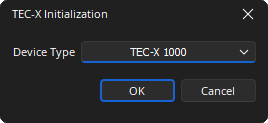
Device Type: Select a TEC-X device type.
DSP Block Representation

Control Dialog
The user controls the device functions by customizing pages, button layout, colors, text, and button actions from the control dialog window.
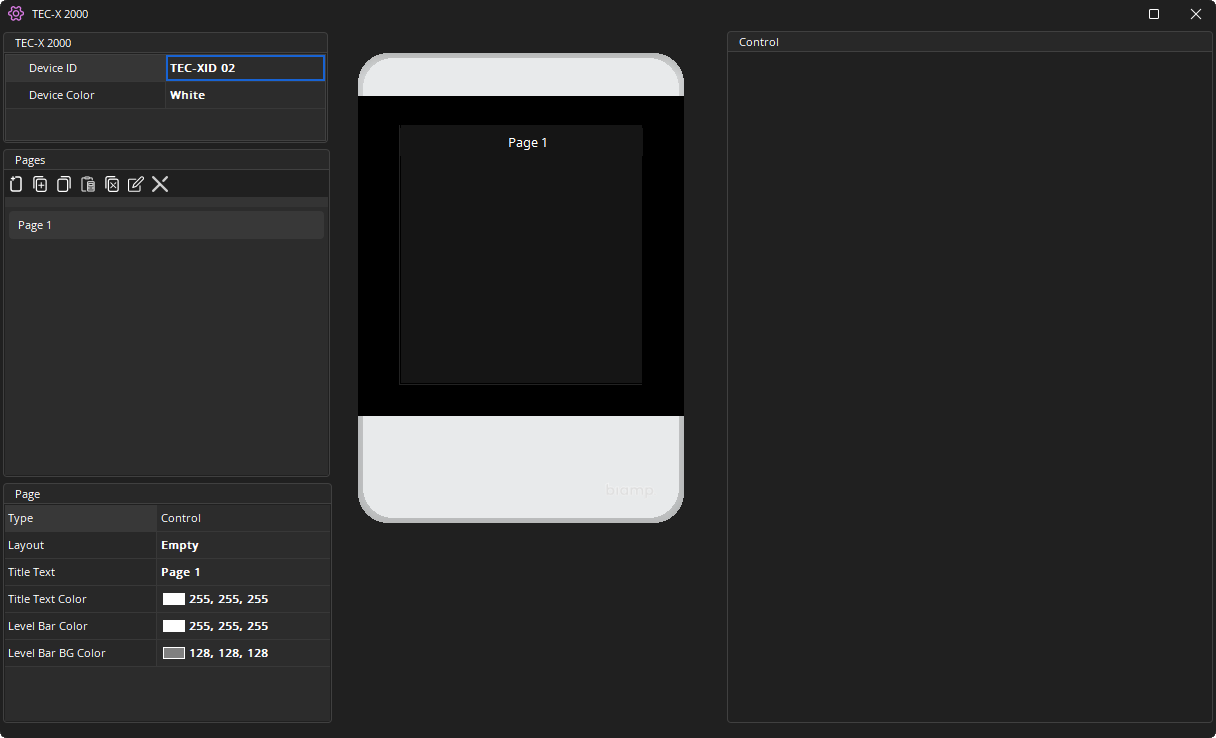
The Control Dialog page is composed of four subsections: TEC-X, Pages, Page, and Control. These sections are detailed below.
TEC-X
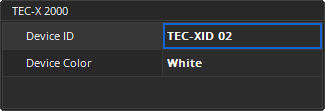
Device ID: The name of the device that will be visible while configuring.
Device Color: The color of the device on the control dialog display.
Pages
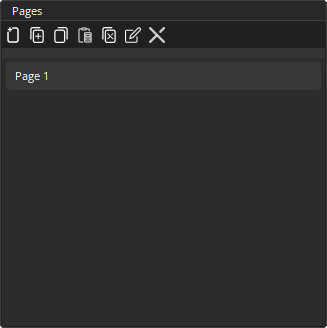
Add: Creates a new page. Page type, layout, and name can be selected from the add new page prompt. If a name is already used for another page the lettering will turn red and the OK button will become inactive.
Duplicate: Creates an additional copy of the currently selected page.
Copy: Copies the contents of the currently selected page.
Paste: Pastes the copied contents into the currently selected page (overwriting any existing content).
Clear: Clear all contents from the currently selected page.
Rename: Allows the currently selected page to be renamed (press Enter key to confirm new name).
Delete: Removes the currently selected page completely.
Page
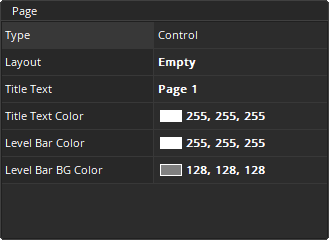
Type: Drop-down to select a control type.
Layout: Drop-down to select the number and layout of on-screen buttons. See below for additional details.
Title Text: The Title Text displays directly above the on-screen control buttons.
Title Text Color: Use the Title Text Color drop-down to change text color. Full range color picker is available by selecting the More Colors.
Level Bar Color: The Level Color changes the color of the indicator bar at the top of the device LCD.
Level Bar BG Color: The Level BG Color changes the background color of the indicator bar at the top of the device LCD.
Layout
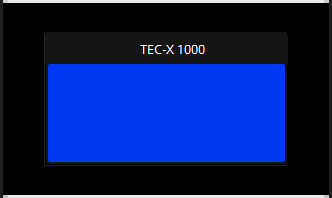
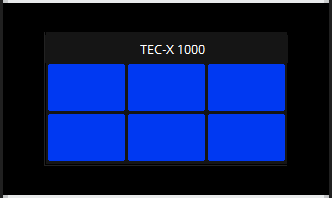
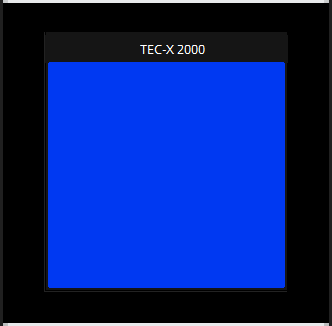
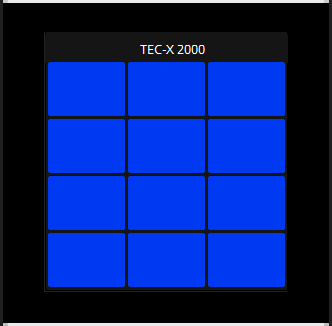
The TEC-X 1000 pages support up to 6 buttons per page and TEC-X 2000 pages supports up to 12 buttons per page. Controls can't be utilized without a layout that includes at least one button (or the rotary knob) selected.
TEC-X 1000:
TEC-X 2000:
Control
The Control button dialog subsection menu is not accessible without a layout selected. A button, or the Rotary Knob, must also be selected to access the control functions.
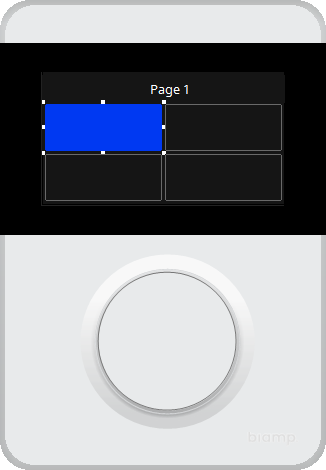
The Control subsection is composed of four tabs: Display, Press, Hold, and Release. These sections are detailed below.
Display tab
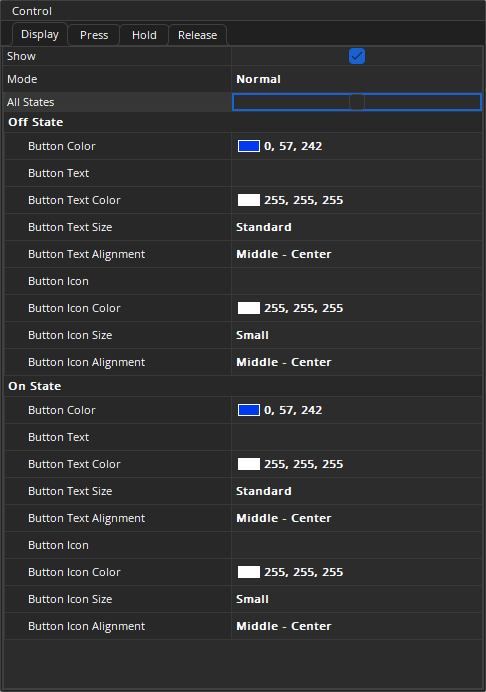
Show: Hide a button from the device display by unchecking the Show checkbox.
Mode: The Mode drop-down allows the user to choose whether the button acts as Normal (momentary) or as Latch (two state) when pressed. Mode details are available under the Action tabs section below.
All States: The All States checkbox is checked by default, Display Options remain static while it is checked. Uncheck the All States checkbox to make Display Options interactive by using the Off State and On State sections.
Display Options:
- Button Color: Changes the color of the selected button.
- Button Text: Allows written text to be added to the button display.
- Text Color: Changes the color of the written text on the button display.
- Text Size: Changes the size of the written text on button display.
- Text Alignment: Changes the alignment of the written text on button display.
- Button Icon: Allows icons (selected from the list) to be added to the selected button.
- Icon Color: Changes the color of the chosen icon.
- Icon Size: Changes the size of the chosen icon.
- Icon Alignment: Changes the alignment of the chosen icon.
Action tabs
Normal Mode: displays three Action tabs that allow the user to attach up to three actions to a single button—one action when the button is Pressed, one when the button is Held for an specific period of time, and one when the button is Released.
Latch Mode: displays two Action tabs, Latch and Unlatch, which the user may attach up to two actions to a single button.
Rotary Knob: (TEC-X 1000 Only) RotateCW to attach actions to clockwise rotation and RotateCCW to attach actions to the counterclockwise rotation. The Rotary Knob displays five action tabs which allow the user to attach up to three actions to a single button.
Actions
Use Attributes settings to control the device behavior and use Command settings to control the system behavior.
Attributes:
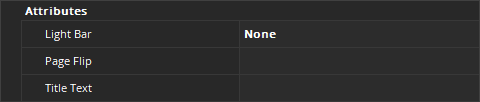
- Light Bar: The Light Bar drop-down selects a color for the associated action. The interface displays a preview of the selected color.
- Page Flip: The Page Flip drop-down allows a button to flip from one page to another page. See Page Navigation below for additional details.
- Title Text: The Title Text appears momentarily while the action is in progress. (Not available for RotateCW or RotateCCW)
Command:

Use Instance Tag and Description to select a command block associated with an open Tesira file and assign an attribute to the block. If the desired control is not available in the Instance Tag drop-down, use Raw String checkbox to enter a standard TTP command to send to the system. Use the Command String Calculator via the link to generate a command string to control Tesira products.
See TTP Overview and TTP Syntax for additional details.
Page Navigation
To switch between pages each page must have buttons assigned with Page Flip actions. Only Press and Release tabs may be assigned as page flip buttons.
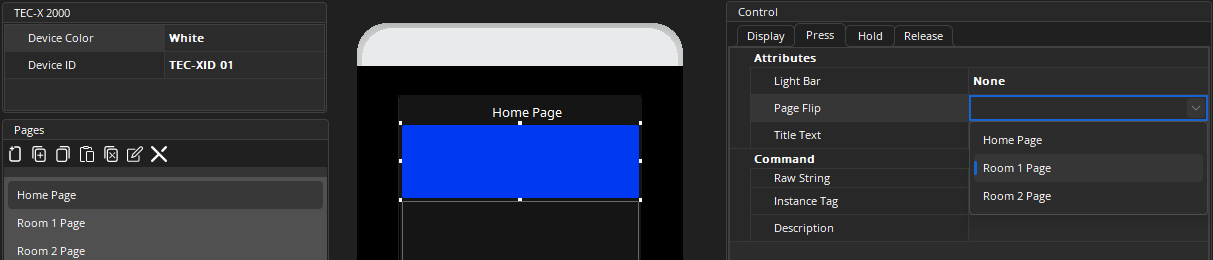
A page flip button allows the user to move from the current page to a page selected from the Page Flip drop-down. Each page in a multi-page configuration needs to have at least one Page Flip button to navigate between pages.
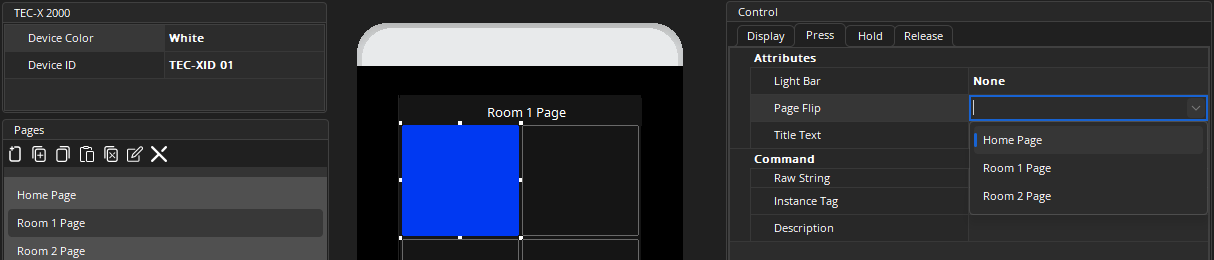
Note: Buttons with page flips attached to press or release tabs can have actions attached to other tabs.
TEC-X Device Maintenance Properties
The TEC-X Properties dialog displays the current settings of the selected TEC-X device and provides options to update those setting. This is accessed via the Remote Device Maintenance dialog menu.
Device ID: The Device ID must match exactly with the device ID in the Control Dialog for the unit to receive the appropriate configuration menus and to control the correct parameters. Multiple TEC-X devices with same device ID will have the same layout.
Unlock Code: Allows the user to assign a four-digit PIN that must be entered to access locked device. If the Lock Timeout is set, this Unlock code is required to unlock the unit.
Lock Timeout: Determines the amount of inactive time before the unit locks (in seconds). The Unlock Code will then be required to operate the unit.
Dim Timeout: Determines the amount of inactive time before the unit dims the display (in seconds) to save power. A sensory input brings the display back to full brightness.
Sleep Timeout: Determines the amount of inactive time before the unit goes into sleep mode (in seconds) to save power. A sensory input brings the unit out of sleep mode.
Light Bar Brightness: The brightness level of the LEDs at the back of the device.
Normal LCD Brightness: The brightness level of the display.
Dim LCD Brightness: The brightness level of the display when dimmed.
Enable LCD Automatic Brightness Control: Enables/disables automatic brightness control.